Why Voice Notes?
Most of us think faster than we type. An idea pops up during a walk, a key decision surfaces in a meeting, or a creative spark hits at the worst possible moment — and by the time we find a keyboard, the thought is half-gone.
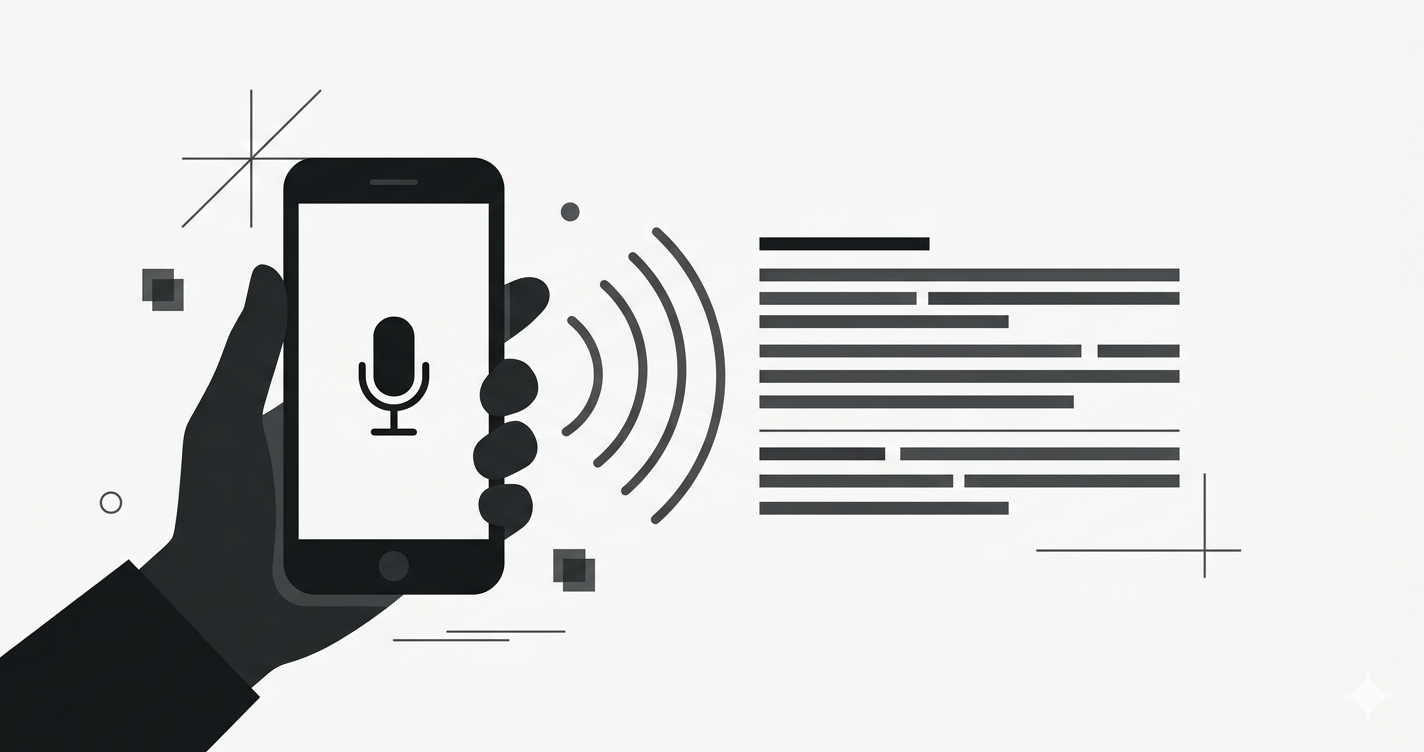
Soria was built for exactly this. Tap record, speak your mind, and let AI handle the rest.
Setting Up Your Account
Getting started takes about 30 seconds. Download the mobile app or open the web version, enter your email, and verify with the code we send. That's it — no password to remember, no profile to fill out right away.
Once you're in, you'll see a clean home screen with a single microphone button front and center.
Organizing with Folders
Before you start recording, it helps to create one or two folders. Think of them like notebooks — one for work, one for personal ideas, maybe one for a specific project.
Head to the Folders tab and tap New Folder. You can always rearrange notes between folders later, so don't overthink it.
Your First Recording
Tap the mic. Speak naturally — you don't need to slow down or enunciate like a robot. Soria's transcription engine handles accents, filler words, and background noise surprisingly well.
When you're done, tap stop. Within seconds, you'll see a full text transcript alongside the original audio. You can play back specific sections, edit the text, or just leave it as-is.
What Happens After You Record
This is where Soria gets interesting. The AI doesn't just transcribe — it also:
- Summarizes long recordings into a few key sentences
- Extracts action items so you never lose track of your to-dos
- Detects sentiment to help you reflect on tone and mood
- Applies your preferred writing style — formal, casual, list format, and more
All of this happens automatically. You can tweak the results or re-process a note with a different tone anytime.
Finding Things Later
Every note is fully searchable. Type a keyword and Soria surfaces relevant recordings instantly — no scrolling through chronological lists hoping to spot the right one.
You can also browse by folder, sort by date, or use the AI chat to ask questions about your notes directly.
A Few Tips from Power Users
-
Record short notes often rather than one long monologue. Shorter recordings are easier to search and organize.
-
Name your folders by project, not by date. "Q1 Marketing" is more useful than "March Notes."
-
Try the summary feature on anything longer than two minutes. It saves real time.
-
Set up special words in settings if you use acronyms, brand names, or technical terms. This dramatically improves transcription accuracy.
Ready?
The best way to understand Soria is to try it. Open the app, record a 30-second thought, and see what comes back. You might be surprised how much easier it is to think out loud.

