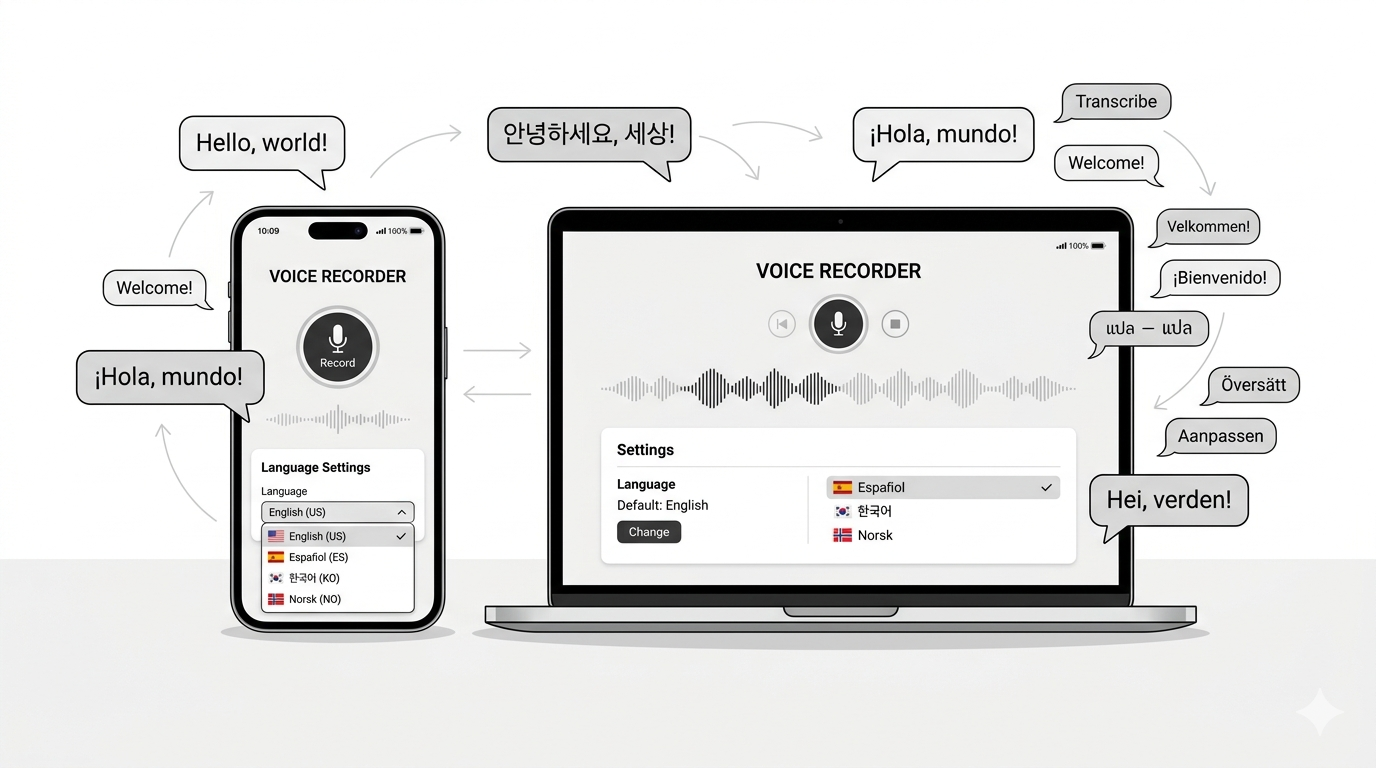
One App, Every Language Scenario
You speak Norwegian in a meeting, but your team reads the notes in Korean. You're a student in Berlin, listening to a German lecture, wishing the transcript appeared in your native language. Or maybe you just want to quickly capture an idea in your own words — no translation needed.
Soria Voice Note handles all of these. The key is knowing which two settings to adjust before you hit record: your Input Language (what you speak) and your Output Language (what you read).
Here's how to set it up for five real scenarios you'll actually encounter.
Quick Setup: Where to Find Language Settings
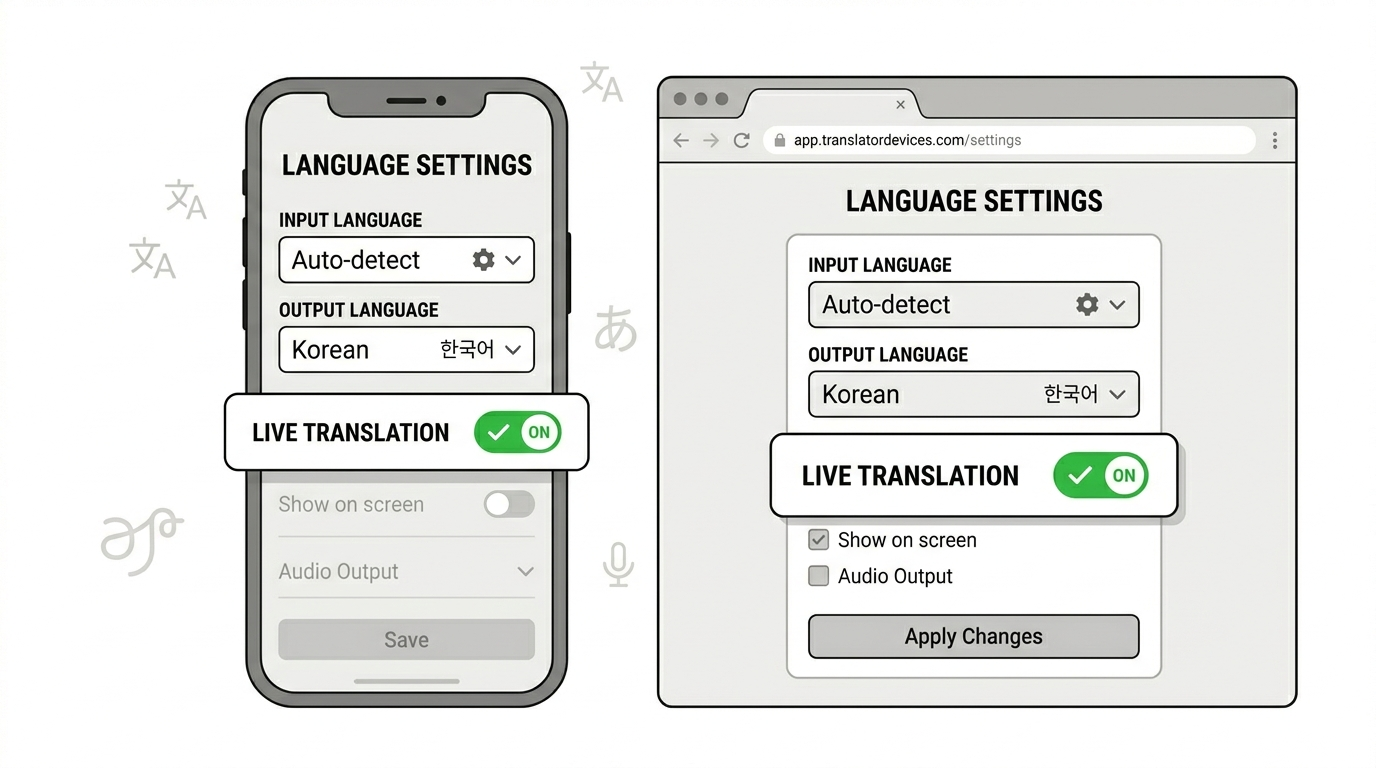
On mobile: Tap the language selectors at the top of the recording screen — you'll see Input and Output dropdowns right above the Solo/Meeting toggle.
On web: Go to Settings > Language tab, or adjust directly on the recording page.
The two settings that matter:
- Input Language — The language being spoken. Set to Auto-detect if you're not sure, or pick a specific language for best accuracy.
- Output Language — The language you want your transcription, summary, and analysis delivered in.
Pro tip: Norwegian, Swedish, and Danish sound very similar to AI models. If you speak one of these, selecting the specific language instead of Auto-detect will noticeably improve accuracy.
Scenario 1: Quick Personal Memo

Situation: You're walking to the office and an idea hits. You pull out your phone and start talking.
Your setup:
- Mode: Solo
- Input Language: Your native language (e.g., Korean)
- Output Language: Same as input (Korean)
- Live Transcription: Off (optional)
- Live Translation: Not needed
Why this works: When you're talking to yourself in your own language, there's nothing to translate. Soria transcribes your voice, generates a clean summary, and saves it. Simple.
Result: A neatly organized note with title, summary, and action items — all in your language, ready to review later.
Scenario 2: Multilingual Business Meeting
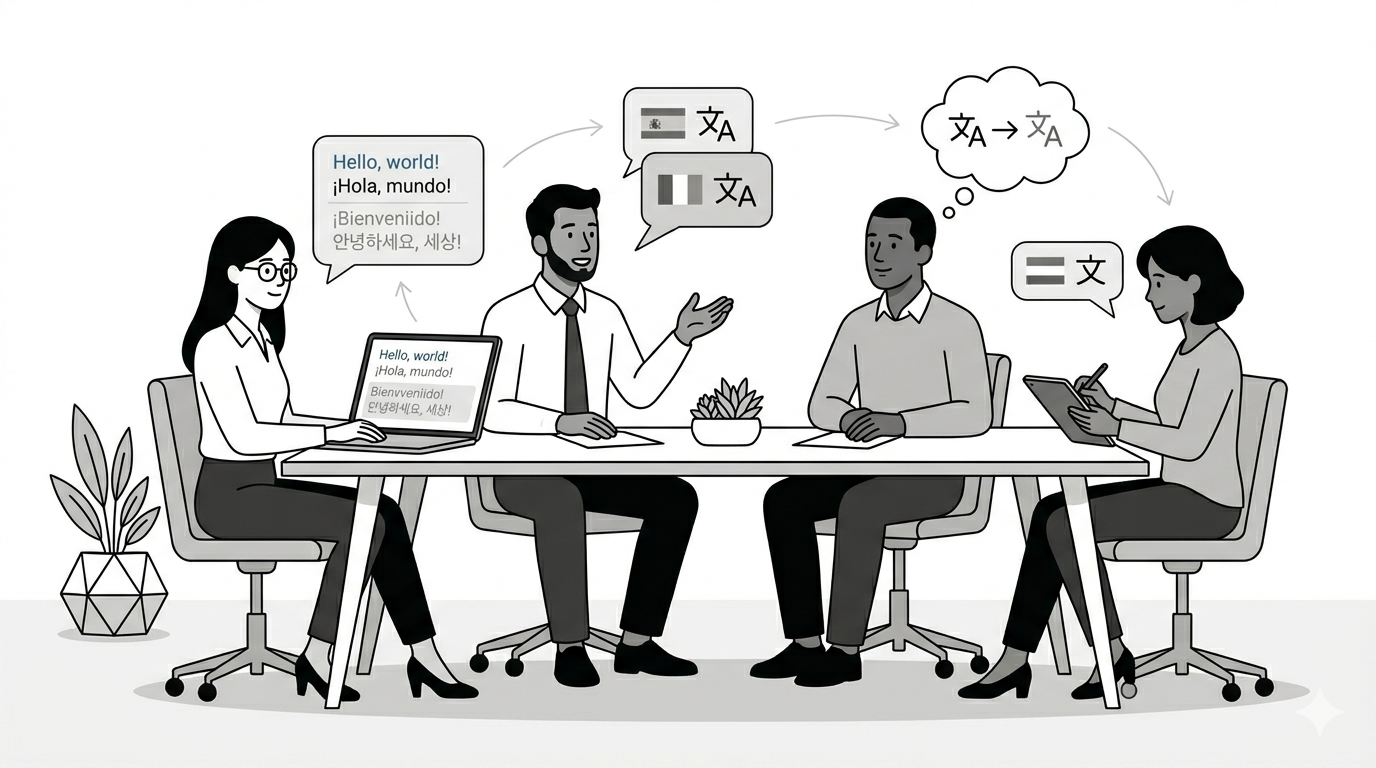
Situation: You're in a meeting where colleagues speak Norwegian. You need the meeting notes in Korean for your team back home.
Your setup:
- Mode: Meeting
- Input Language: Norwegian (or Auto-detect)
- Output Language: Korean
- Live Transcription: On
- Live Translation: On
Why this works: Meeting mode identifies who said what (speaker diarization). Live Translation kicks in at every natural sentence break — you see the Norwegian original and Korean translation side by side in real time. After the meeting, the summary and action items are generated in Korean.
Result: A bilingual meeting record. Switch between Original, Parallel, and Translated views anytime. Share the Korean version with your team, keep the Norwegian original for reference.
Scenario 3: Attending a Foreign Language Lecture

Situation: You're a Korean exchange student in a Norwegian university. The professor lectures in Norwegian, and you need to follow along and review in Korean later.
Your setup:
- Mode: Solo
- Input Language: Norwegian
- Output Language: Korean
- Live Transcription: On
Why this works: Solo mode captures the professor's voice with high accuracy (especially with the specific language selected instead of auto-detect). After the recording stops, Soria automatically translates the full transcript to Korean. You get the original Norwegian text preserved alongside the Korean translation.
Result: A dual-language study resource. Review the professor's exact words in Norwegian, then read the Korean translation for comprehension. Use the Parallel view to study both simultaneously.
Scenario 4: Doctor's Visit Abroad
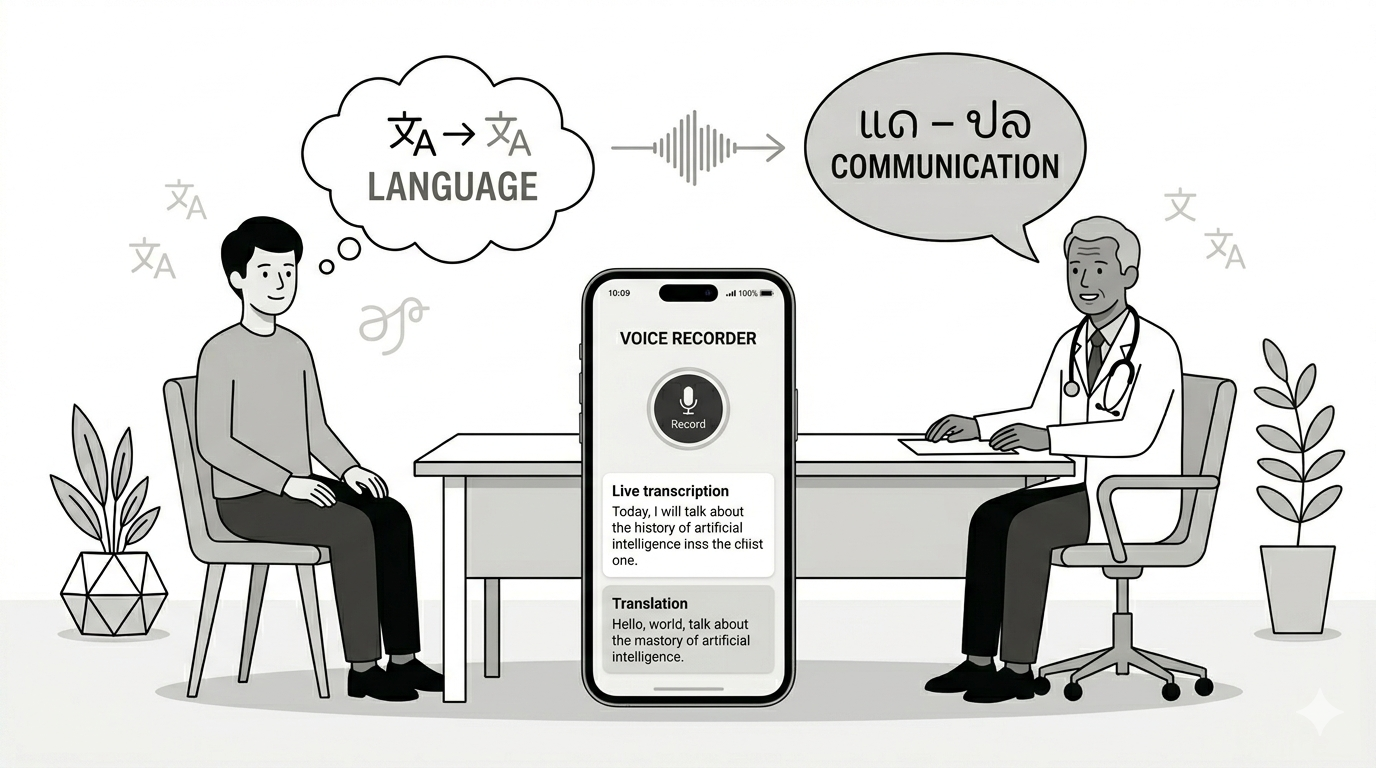
Situation: You live in Norway and have a doctor's appointment. The doctor speaks Norwegian, and you want to make sure you understand everything — and have a record in Korean to share with family.
Your setup:
- Mode: Solo
- Input Language: Norwegian
- Output Language: Korean
- Live Transcription: On
Why this works: You discreetly place your phone on the table and let Soria capture the conversation. The live transcription shows you the Norwegian text in real time so you can follow along. After the appointment, the full transcript is automatically translated to Korean.
Result: A complete medical record in both languages. The Norwegian original preserves exact medical terminology, while the Korean translation helps you understand and share with family.
Important: Always inform the other person that you're recording, as required by local privacy laws.
Scenario 5: International Team Standup (Mixed Languages)
Situation: Your distributed team has members who speak English, Korean, and Norwegian. The standup happens in English, but you want notes in Korean.
Your setup:
- Mode: Meeting
- Input Language: English
- Output Language: Korean
- Live Transcription: On
- Live Translation: On
Why this works: Even though the meeting is primarily in English, the Meeting mode with Live Translation gives you Korean subtitles in real time. Each speaker is identified separately, and the Korean translation appears below each statement as they finish speaking.
Result: Korean meeting minutes with speaker attribution, automatically generated from an English standup. No more manual translation after every meeting.
The Parallel View: Your Bilingual Superpower
Whenever Input and Output languages differ, Soria saves both versions. After recording, you'll see a three-way toggle:
- Original — The raw transcription in the spoken language
- Parallel — Both languages, line by line (best for studying or verification)
- Translated — Only the output language (cleanest reading experience)
Switch between them anytime. Copy either version. The summary and action items are always in your Output Language.
Cheat Sheet
Memo in my language — Solo, same input and output language, no translation needed.
Record a foreign meeting — Meeting mode, their language as input, your language as output, Live Translation on.
Listen to a foreign lecture — Solo, their language as input, your language as output, auto-translated after recording.
Record a doctor visit abroad — Solo, their language as input, your language as output, auto-translated after recording.
Team standup in English, notes in Korean — Meeting mode, English input, Korean output, Live Translation on.
Get Started
Language settings take 10 seconds to configure and transform how you capture multilingual moments. Whether you're in a boardroom in Oslo or a lecture hall in Berlin, Soria adapts to your language reality.
Download the app or open the web version to try it today.

