The Problem with Meeting Notes
You're in the meeting and trying to write down what's being said. So you miss half of it. Then afterwards you spend twenty minutes turning messy bullet points into something you can actually share — and you still forget who agreed to do what.
Soria flips this around. You record, you stay present, and the AI does the writing. By the time the meeting ends you already have a transcript, a summary, and a list of action items.
Here's the full workflow.
Step 1: Start a Recording
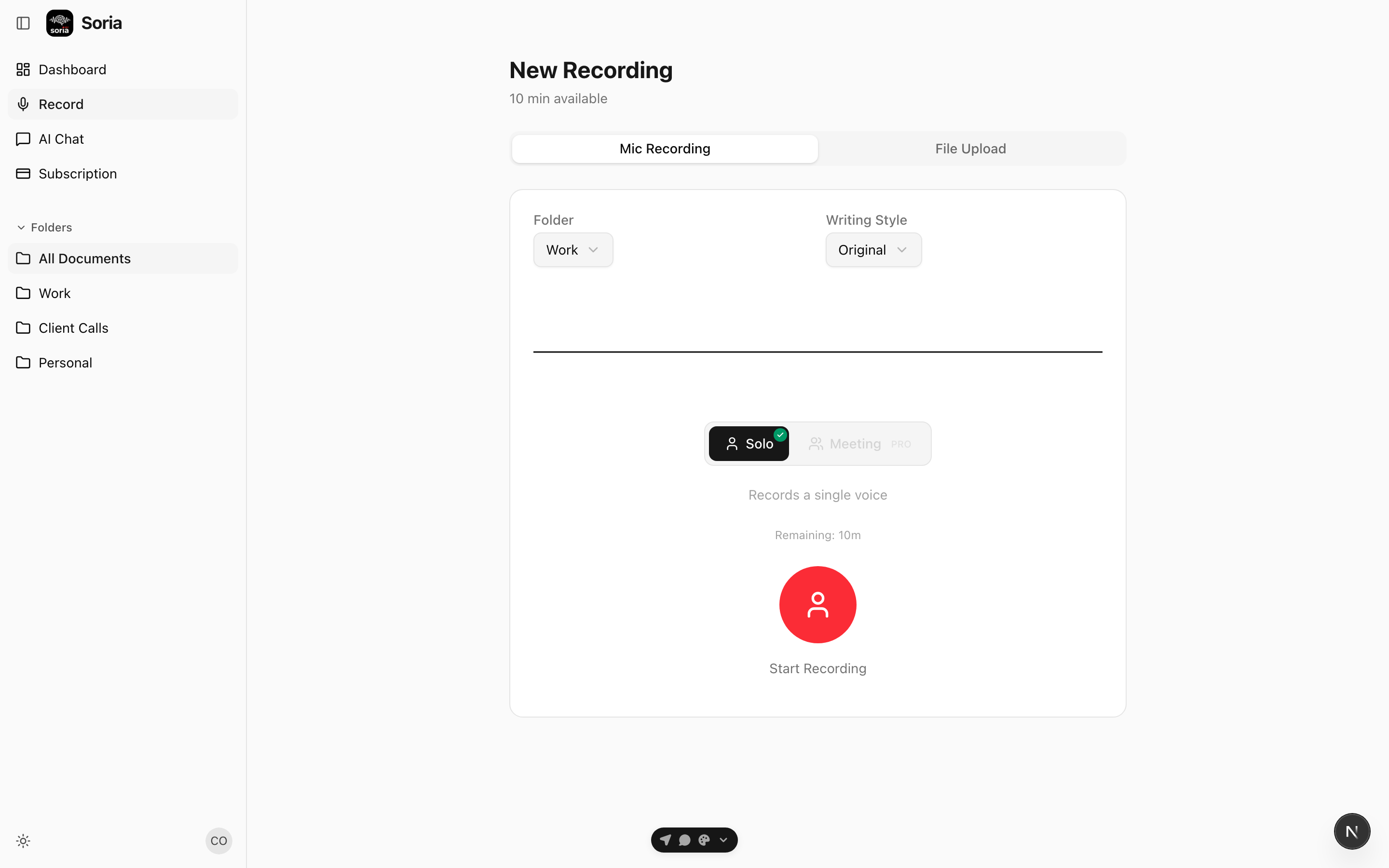
Open the recording screen and you have two ways in:
- Record live — tap the microphone and start talking. Put your phone on the table and let it capture the room.
- Upload a file — already have an audio file (a Zoom export, a voice memo)? Switch to the File Upload tab and drop it in.
Before you start, pick the right mode:
- Solo — one voice (a memo, a lecture, your own thinking out loud).
- Meeting — multiple voices. This turns on speaker diarization, so the transcript knows who said what.
For a team meeting, choose Meeting.
Pro tip: If everyone speaks the same language, set the Input Language explicitly instead of Auto-detect. It noticeably improves accuracy — especially for Norwegian, Swedish, and Danish, which AI models often confuse.
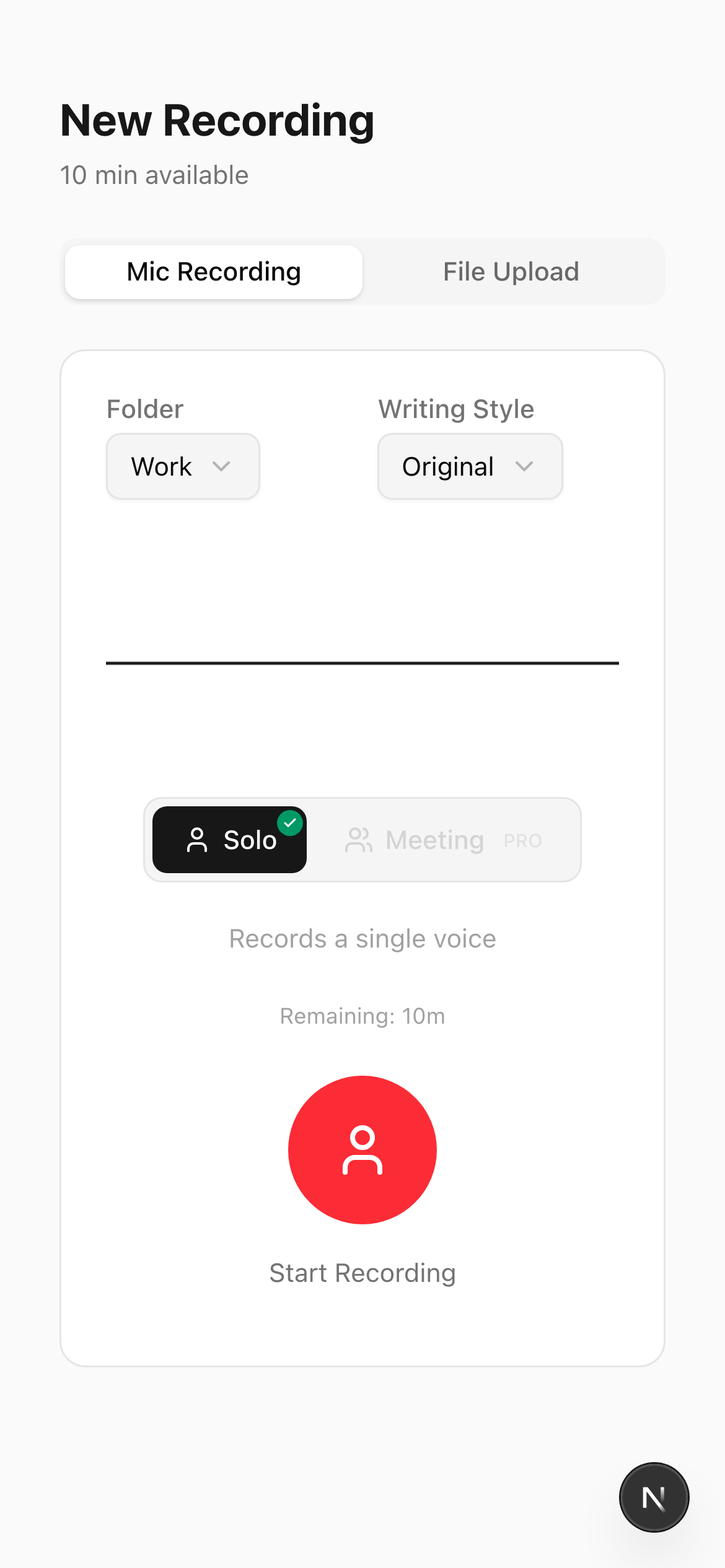
On your phone or on the web — the same flow works everywhere. Capture on mobile during the meeting, then review and share from your laptop afterward.
Step 2: Let Soria Transcribe
When you stop the recording (or finish the upload), transcription starts automatically. Within seconds you get the full text alongside the original audio, so you can scrub back to any moment and hear exactly what was said.
In Meeting mode, each line is attributed to a speaker. You can rename "Speaker 1" to a real name once, and Soria remembers that person for future recordings.
Step 3: Read the Summary and Action Items
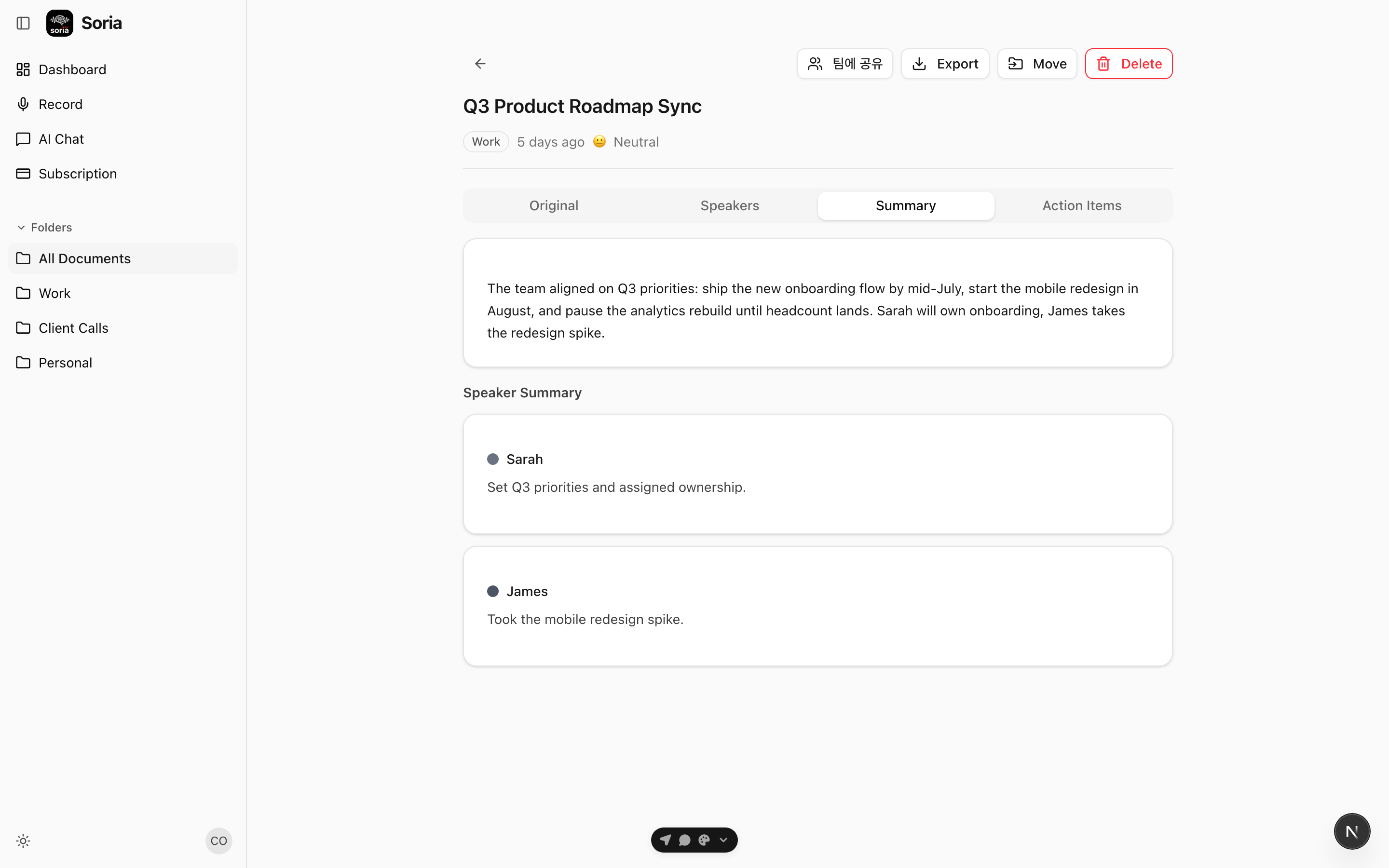
This is where the time savings happen. Soria reads the whole transcript and produces:
- A summary — the decisions and key points, in a few sentences.
- Action items — concrete tasks pulled out of the conversation, with priority. Check them off as you go.
- Speaker insight — in Meeting mode, a short summary of what each person contributed.
No more re-reading the transcript to figure out the takeaways. They're already extracted.
Step 4: Organize and Find It Later
Drop the note into a folder — one for each project, client, or class. Everything is searchable by content, not just title, so a meeting from three weeks ago is one search away.
And because the summary and action items are structured, you can come back and ask Soria questions about the recording later (more on that in Chat With Your Voice Notes).
Step 5: Share the Notes
Copy the summary, the action items, or the full transcript and paste it into Slack, email, or your task tracker. If you recorded in one language but your team reads another, switch the Output Language and share the translated version — the original stays preserved.
A Realistic Timeline
For a 30-minute meeting:
- 0 min — tap record, stay present.
- +30 min — meeting ends, you tap stop.
- +31 min — transcript, summary, and action items are ready.
- +33 min — you've shared the notes and assigned the tasks.
Compare that to manually writing minutes after the call. The difference adds up fast across a week of meetings.
Get Started
Recording your next meeting takes one tap. The notes write themselves.
Download the app or open the web version and try it on your next call.

